

Get started with Oso by running the installer. It configures your coding agents to route traffic through Oso and registers your device. You will:Documentation Index
Fetch the complete documentation index at: https://www.osohq.com/docs/llms.txt
Use this file to discover all available pages before exploring further.
- Get your Environment ID.
- Run the Oso installer to configure your tools and register your device.
- See agent activity in your Oso for Agents dashboard.
Step 1: Get your Environment ID
- Go to ui.osohq.com and log in.
If you are a new user, create an Oso for Agents tenant when prompted.
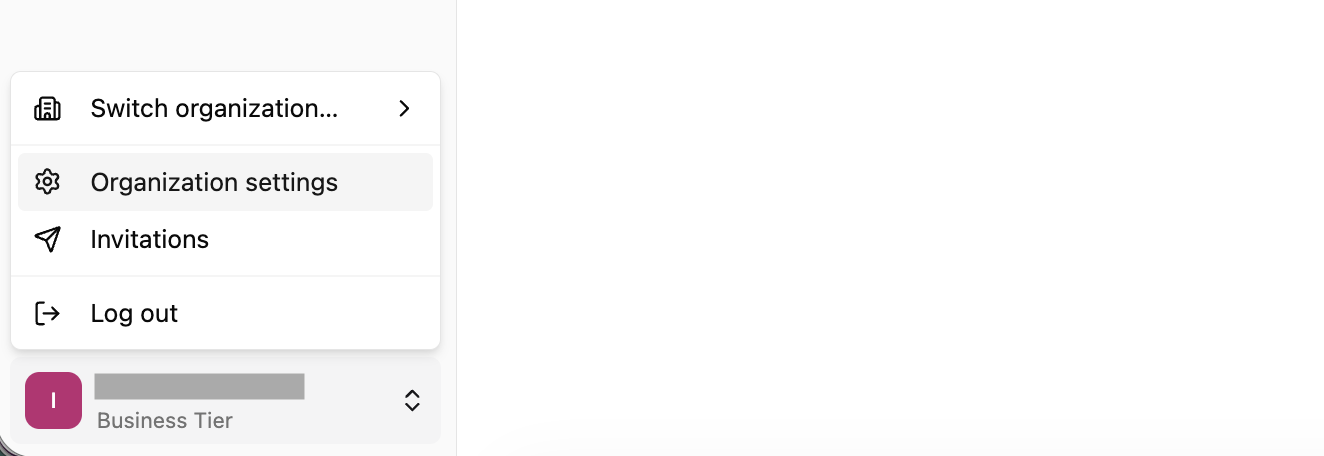
- Click your organization name in the bottom-left corner and select Organization settings.
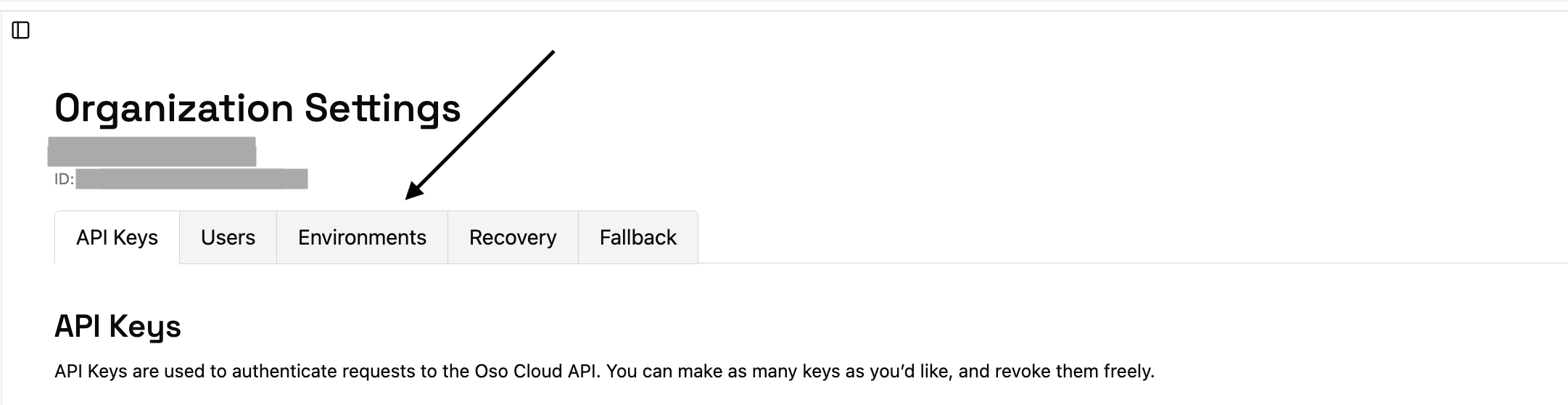
- In the settings panel, click the Environments tab.
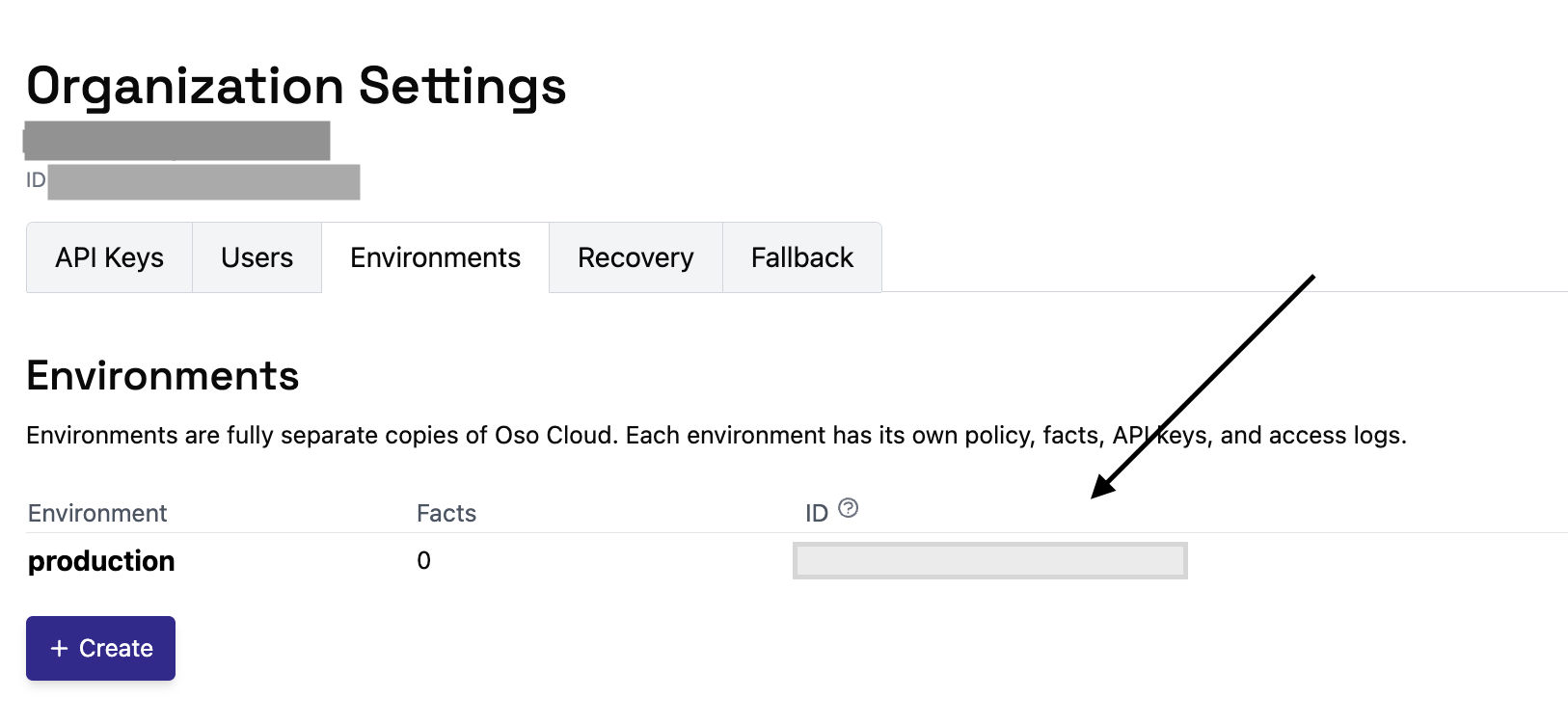
- Copy the Environment ID for your environment.
Step 2: Install and configure
Run the Oso installer in your terminal:To install globally on the device, run with
sudo sh instead:What the installer configures
The installer prompts you to select which tools to configure. By default all are selected.| Tool | Config file |
|---|---|
| Claude Code | ~/.claude/settings.json |
| Cursor | ~/.cursor/hooks.json |
| Codex | ~/.codex/config.toml |
Manual configuration
If you prefer to configure tools by hand, expand the sections below.Claude Code
Claude Code
Add the following to Replace
~/.claude/settings.json:<your-environment-id> with the Environment ID from Step 1.
Enter your email into the X-Identity header to allow Oso to correlate sessions with a specific user.Codex
Codex
Create a model provider configuration in Replace
~/.codex/config.toml:<your-environment-id> with the Environment ID from Step 1.
Enter your email into the X-Identity header to allow Oso to correlate sessions with a specific user.If you have
OPENAI_BASE_URL set as an environment variable, unset it so the model provider configuration takes effect.Step 3: Monitor agent activity in the Oso dashboard
Use your coding agents as normal. Activity will appear in your Oso for Agents dashboard.Next steps
- Shadow AI: Discover what AI agents are in use across your organization.
- Session Monitoring: See what agents are doing inside their sessions.
- Alerts: Set up monitoring for unsanctioned usage and sensitive content.
- Managed Deployment: Deploy Oso across your organization via MDM or IT policy.
- Other integrations: Network-level and endpoint-based discovery via EDR or Tailscale Aperture.